

Prompt guide
Complete guide for Retro MS Paint Fashion Builder
Retro MS Paint Fashion Builder is a focused AI image prompt template for users who want a polished result without manually assembling a long prompt, negative prompt, visual hierarchy rules and validation instructions. It is built for the people, fashion edits and nostalgic interface art category and is especially useful when the user already has a reference image but needs the AI tool to reinterpret it in a controlled, professional way. Instead of asking for a vague creative edit, this template defines the subject, the composition, the required reference, the style logic, the quality level and the elements that must not appear in the final image.
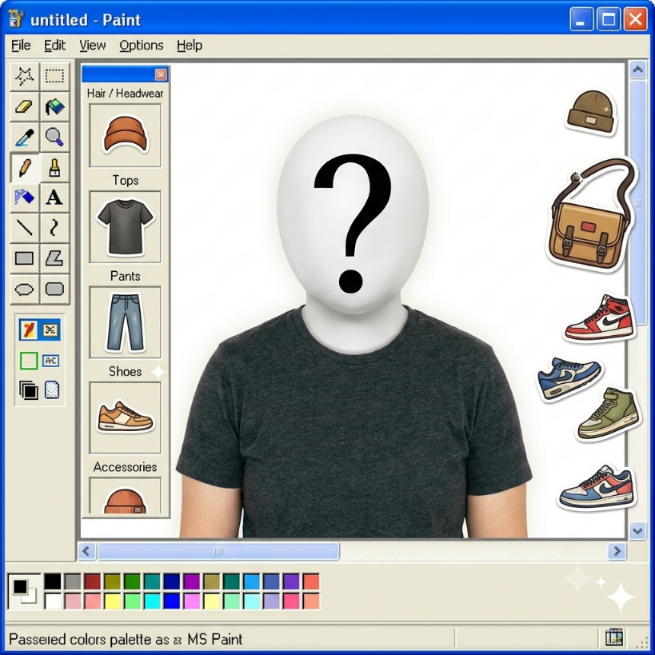
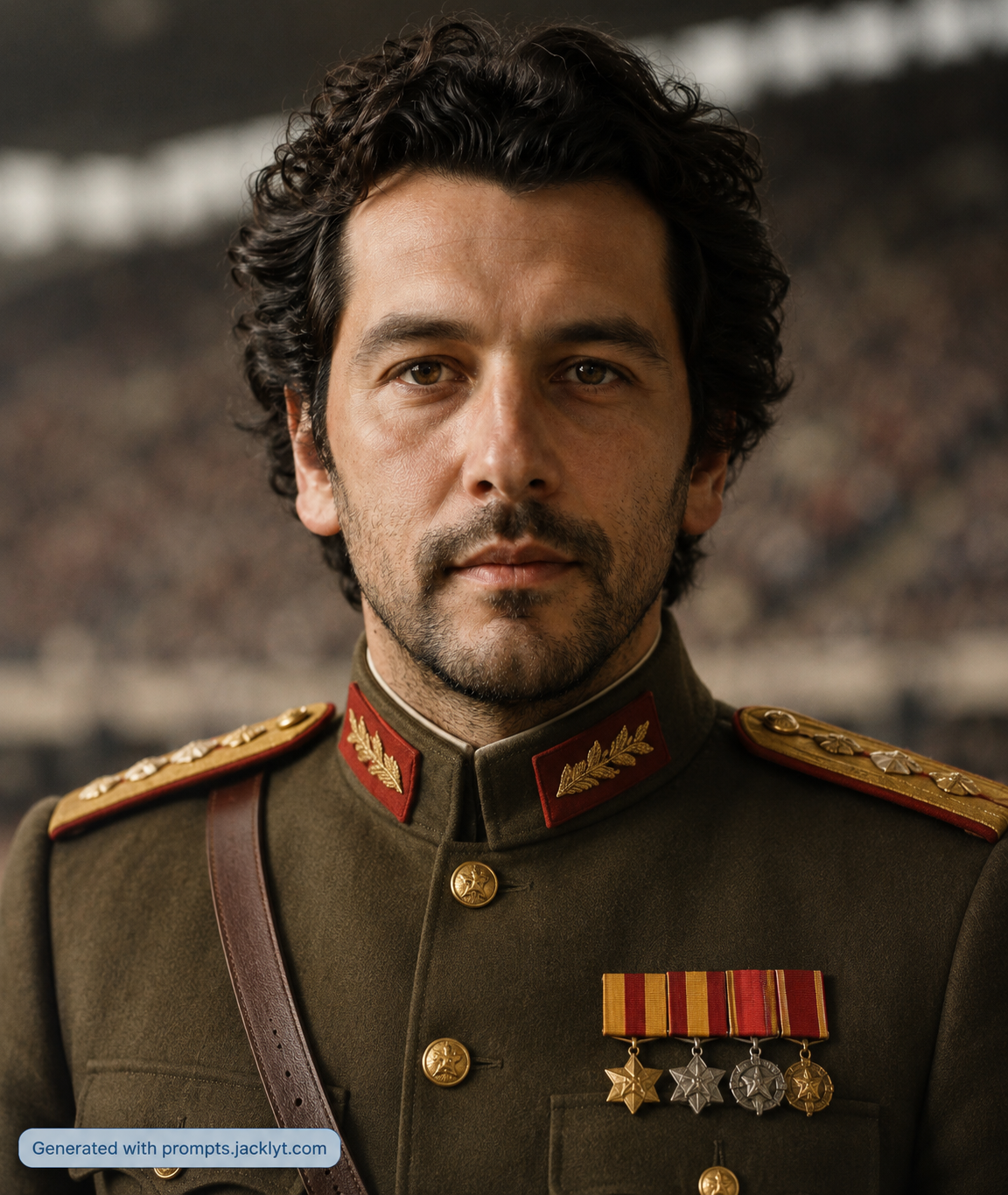
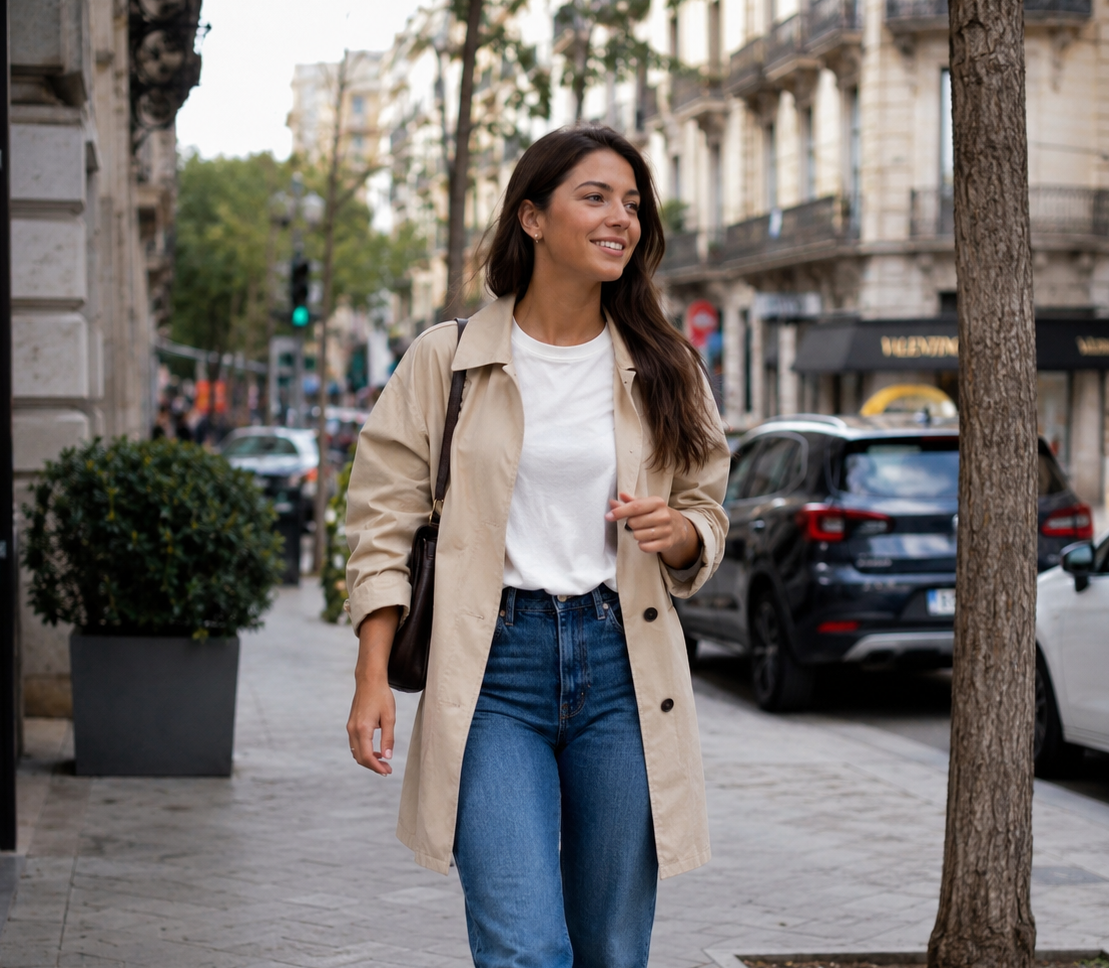
The template works around one uploaded person image [image_1] and an aspect ratio selection. The uploaded reference is not a loose inspiration image: it becomes the foundation of the final generation. The prompt tells the AI to preserve the important identity details from the input while changing the presentation into a premium early-2000s Windows XP and MS Paint inspired fashion builder interface where the person becomes a centered cutout avatar surrounded by retro toolbars, wardrobe pieces, color swatches and nostalgic UI details. This makes the result more consistent than a short prompt because the model receives clear instructions about what to keep, what to transform and how the final image should be validated.
A key advantage of this prompt is its structured creative direction. The template keeps the style focused on Y2K internetcore rather than offering many style choices; the aspect ratio determines how much space the interface, toolbars and wardrobe pieces have around the subject. The template describes how the selected option should influence the image while keeping the essential subject intact. That is important for image-to-image work because many AI tools can drift away from the original reference when the prompt is too short. By including preservation rules, composition rules, lighting guidance, material or texture notes, and negative constraints, the template helps the AI focus on a specific visual target instead of improvising a generic result.
The expected output is a premium early-2000s Windows XP and MS Paint inspired fashion builder interface where the person becomes a centered cutout avatar surrounded by retro toolbars, wardrobe pieces, color swatches and nostalgic UI details. The result should feel finished enough to use as a social media visual, concept image, prompt example, portfolio mockup, creative asset or inspiration image. It is designed to be visually clear, easy to understand at a glance and strong enough for a template preview page. Its main value is preserving the person’s pose and outfit while turning the full image into a playful desktop fashion-builder scene that feels nostalgic, editorial and highly shareable.
This SEO section is also useful for visitors who are not prompt engineering experts. It explains why the template asks for certain inputs, why the prompt includes strict restrictions, and why the negative prompt should remain attached when the final prompt is copied into an AI image tool. Users get better results when they understand that the template is not only describing an image, but also controlling identity preservation, composition, lighting, style, texture, and validation. For best results, the user should upload a clean reference image, choose the most appropriate option when the template includes one, keep the full prompt structure, and regenerate only after checking whether the main subject, style and composition are already close to the intended result.
How to use this prompt
- 1
Upload a full-body or near full-body person photo. The subject should be clearly visible because the template needs the pose, clothing silhouette and body proportions to build the fashion avatar.
- 2
Use the aspect ratio to control the interface layout. A vertical format emphasizes the character, while square or wider formats give more room to the MS Paint toolbar and wardrobe cutouts.
- 3
Keep the full prompt when copying it into an AI tool. The details about Windows XP, toolbars, color palette, cutout edges and negative space are what make the result feel like an intentional retro interface.
Best use cases
Fashion creators can turn outfit photos into nostalgic character-builder visuals for social posts, profile content or moodboards.
It works well for playful personal branding where a normal portrait becomes a retro digital avatar without losing the original clothing identity.
Prompt galleries can use this template to show how UI nostalgia, fashion styling and identity preservation can work together in one image-to-image prompt.
Tips for better results
Choose a photo with clean clothing shapes and visible shoes or accessories. These details help the AI create better wardrobe cutout elements.
Avoid busy backgrounds if possible. A simpler input image makes it easier for the model to isolate the person on the white MS Paint canvas.
If the first result looks too modern, regenerate while keeping the retro wording; removing Windows XP and MS Paint cues weakens the concept.
Common mistakes to avoid
A cropped selfie usually performs poorly because the prompt is designed for a centered full-body fashion character.
Adding too many custom UI instructions can clutter the canvas and reduce the premium editorial feel.
Removing the identity preservation rules can cause the person’s pose, face or outfit to drift into a generic avatar.
Final recommendation
Use Retro MS Paint Fashion Builder when you want a person photo to become a nostalgic Y2K fashion interface rather than a normal portrait edit. The best results come from clear full-body input, enough canvas space and the full structured prompt that balances identity, outfit preservation and retro desktop design.